
What This Feature Does
Enrolling a client in a program connects them to a defined support pathway within Coming Home. This allows teams to align services, assessments, and reporting under a single program structure.
Who Can Use This Feature
- Organization Administrators: Can enroll any client into a program
- Team Members: Can enroll clients assigned to them
- Interns / Volunteers: Can enroll clients assigned to them
- Law Enforcement / Advocates: Do not have access to enroll clients
- Clients: Do not have access to enroll themselves
Before You Begin
- Ensure the client profile has already been created
- Confirm you have access to the program
- Have the client’s start date ready
How to Enroll a Client in a Program
Steps
- Navigate to the left-hand sidebar
- Click on Programs
- Select the program you want to enroll the client in
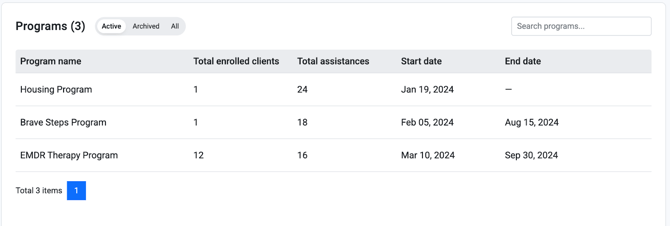
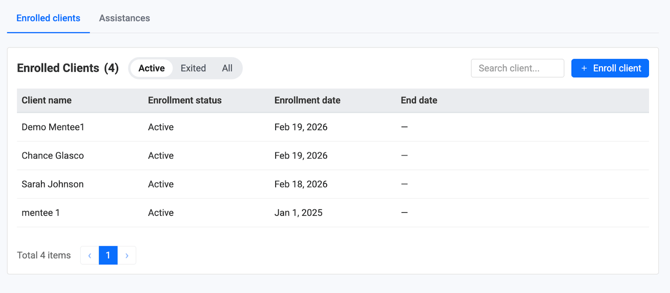
- In the Enrolled Clients section, move your cursor to the right and click Enroll Client
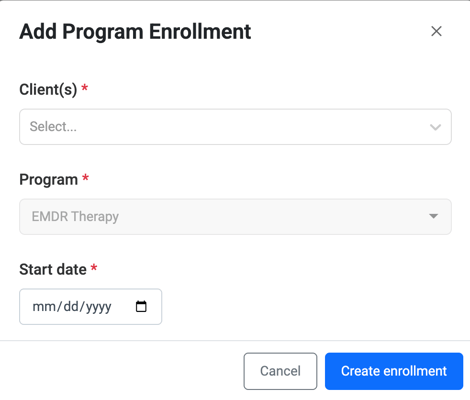
- In the pop-up window, select the client from the Clients dropdown
- Assign a Start Date for the client
- Click Create Enrollment
HMIS Requirement (For CoC Grantees)
If your organization uses HMIS for reporting:
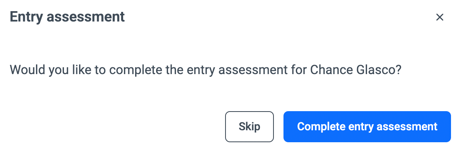
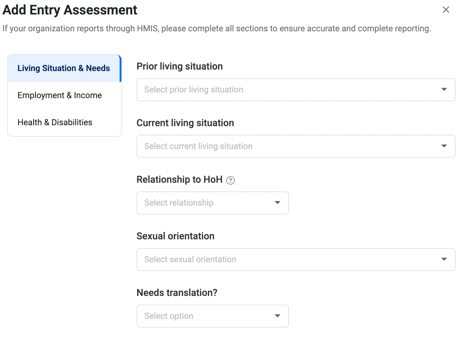
After creating the enrollment, you will be required to complete an Entry Assessment, including:
- Living Situation & Needs
- Employment & Income
- Health & Disabilities
All required fields must be completed before proceeding.
While this is required for CoC grantees, we encourage all users to complete Entry Assessments to support consistent data collection and outcome tracking.
Related Articles
Need more help?
If you still have trouble enrolling your client, contact the Coming Home Support Team for additional help.