
Understanding datasets
A dataset determines which system records Coming Home uses to build your report.
Think of it as telling Coming Home where to look for the information you need.
For example, if you want to report on client demographics, choose Clients.
If you want to report on services your organization has provided, choose Assistances.
What datasets are available?
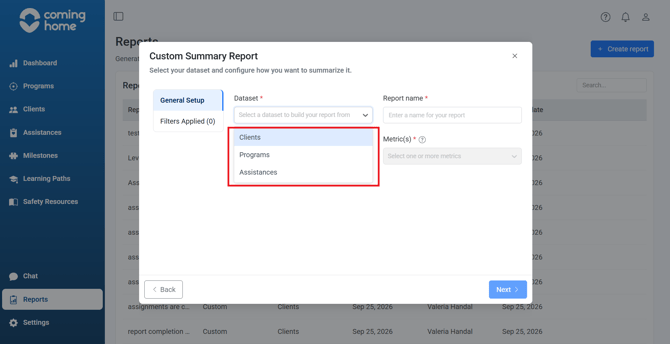
The verified Custom Summary Report dropdown in the provided screenshots shows three datasets: Clients, Programs, and Assistances.
1. Clients
The Clients dataset allows you to report on information recorded in client profiles.
This includes reporting options related to:
- Client status and demographics.
- Program enrollment information.
- Referrals.
- Latest completed Assessment values.
- Goals, Tasks, and Challenges.
Example questions:
- How many clients are currently Active?
- How many clients are recorded in each county?
- What is the average age of our clients?
- How many client assignments are completed?
Note: Assignment activity and selected Assessment information for individual clients are available through the Clients tab.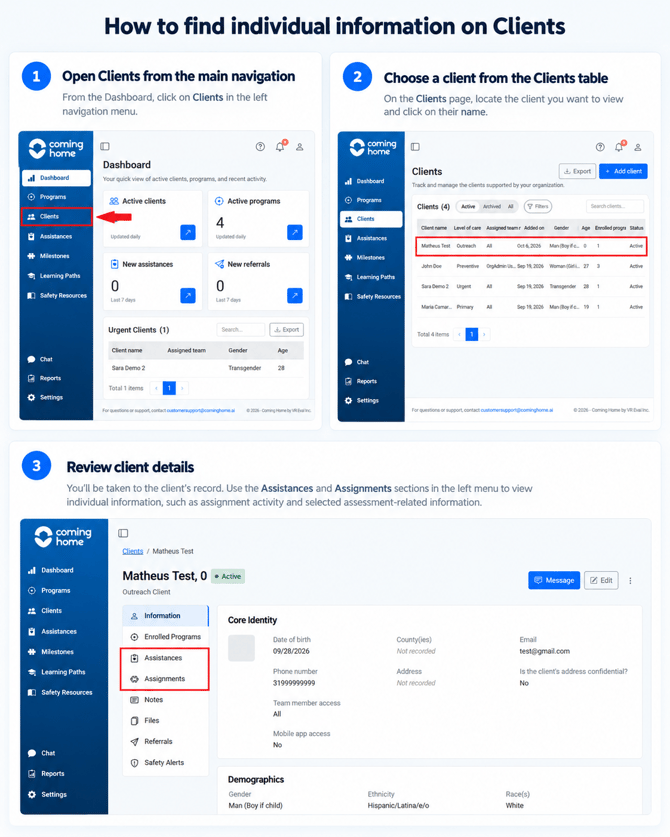
2. Programs
The Programs dataset allows you to review information about your organization's programs.
This includes:
- Program status.
- Program type.
- Funding source.
- Recorded enrollment totals.
- Average and median length of stay.
Example questions:
- How many programs does our organization have?
- How many programs are associated with each funding source?
- How many clients are enrolled in each program??
- What is the average length of stay for each program?
3. Assistances
The Assistances dataset allows you to report on services, resources, and support provided by your organization.
This includes:
- Assistance records.
- Clients receiving Assistance.
- Recorded monetary Assistance.
- Service quantities and durations.
- Bed nights and hotline interactions.
- Recorded outcomes.
Example questions:
- How many Assistances were provided last month?
- How many different clients received Assistance?
- What was the total recorded monetary Assistance?
- How many hotline interactions were provided?
Assistances also supports reporting using past date ranges.
How do I choose the right dataset?Start by asking:
"What is my reporting question mainly about?"
|
What you want to understand |
Dataset |
|
Client demographics or status |
Clients |
|
Goals, Tasks, and Challenges |
Clients |
|
Latest Assessment information |
Clients |
|
Program records and enrollment |
Programs |
|
Services and support provided |
Assistances |
|
Assistance activity from a previous period |
Assistances |
How to create a report using a dataset
Let's create a report showing the number of programs associated with each funding source.
Step 1: Open Reports Home
Select Reports from the left-hand navigation menu to open the place where reports are created and saved.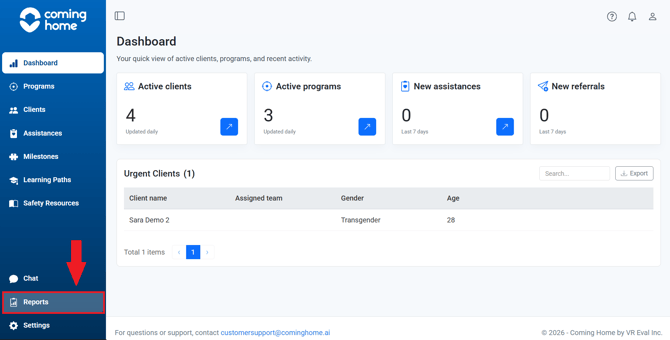
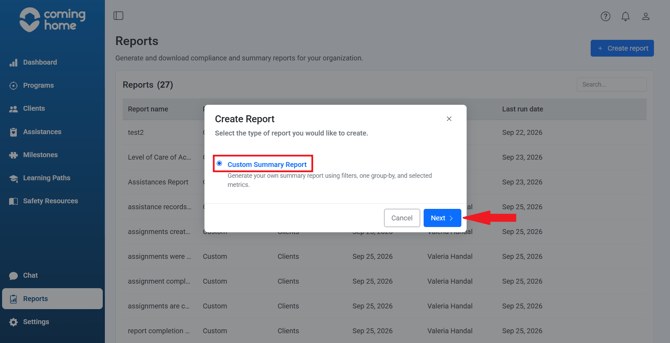
Click Create report, then choose Custom Summary Report. This opens the settings where you can choose which information the report will use.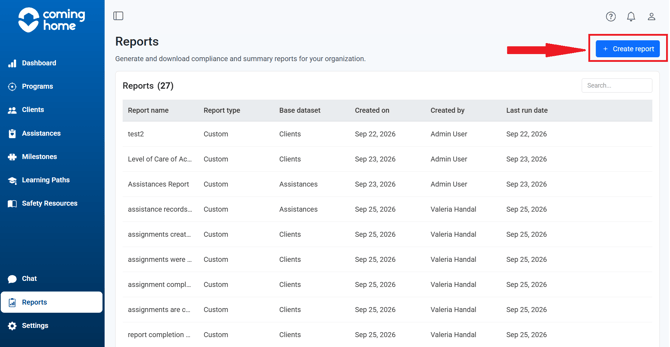
Step 2: Complete General Setup
Enter the following required information.
Dataset: Select Programs.
We're choosing Programs because our question concerns program information.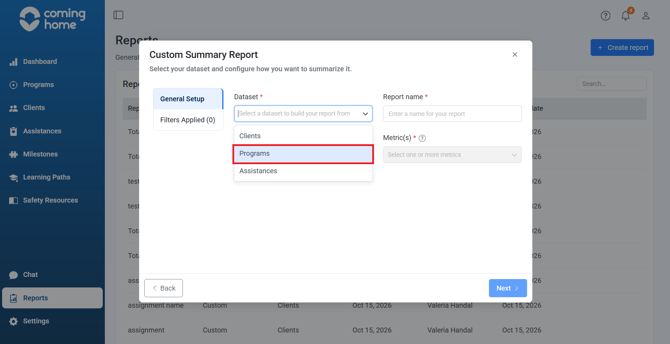
Report name: Enter a name that best describes your Report (Example: Programs by Funding Source).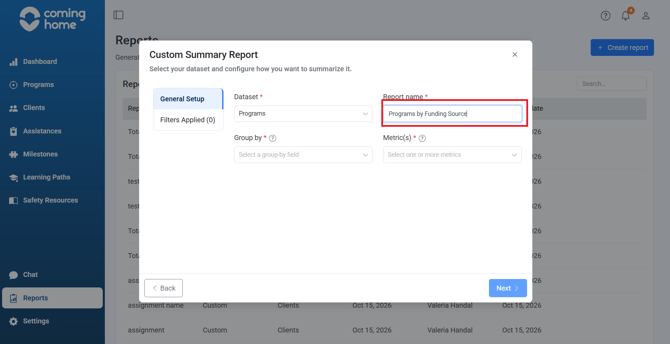
Group by: Select Funding Source.
This organizes your report results according to the funding source recorded for each program.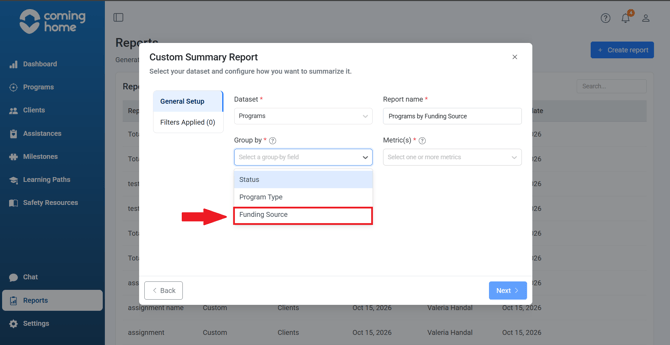
Metric(s): Select Program Count.
This tells Coming Home to count the matching program records for each funding-source category.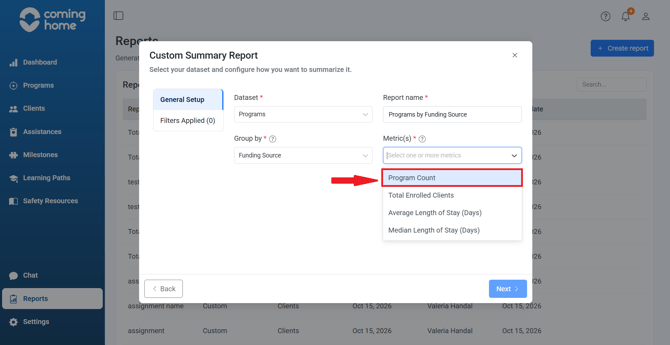
Click Next to continue.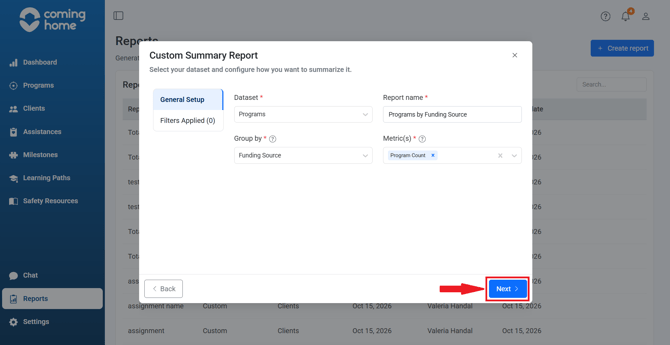
Step 3: Configure Filters Applied
The next screen is Filters Applied.
For this example, we want our report to include all of our Programs, so we'll leave the Filters section empty.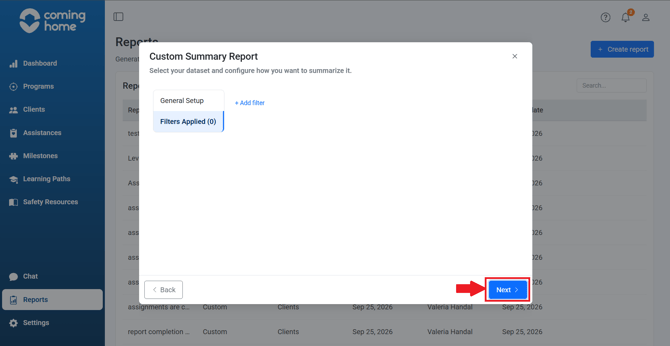
Click Next.
Step 4: Review Report Details
Confirm that your report displays the desired information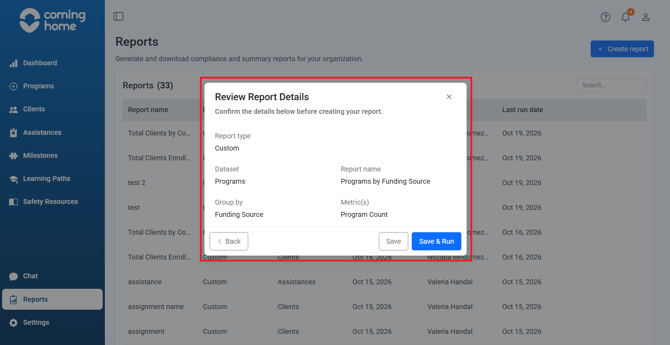
If everything is correct, continue.
Step 5: Save & Run
Click Save & Run.
Coming Home saves your configuration and automatically generates the report.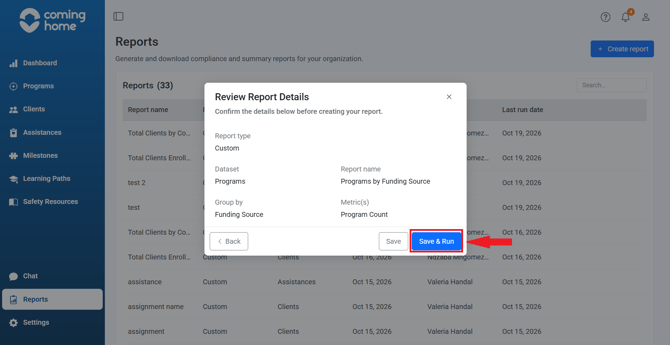
Step 6: Download your report
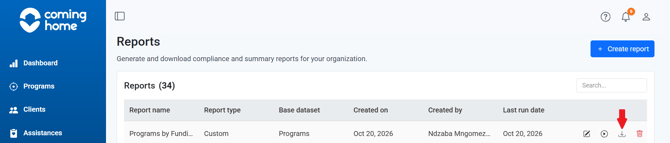
Hover your mouse cursor over your custom report to see the options menu for that report. Select  Download to retrieve the generated CSV file. The file will be downloaded to the Downloads folder on your computer, or wherever your browser downloads files by default.
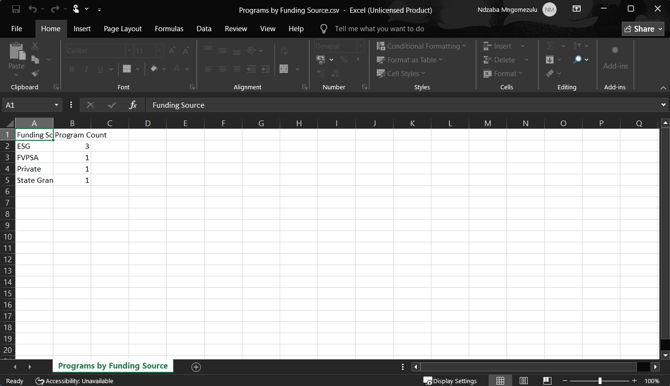
The report will contain a row for each funding-source category and a Program Count value for that category.
Important: If you change your selected dataset during configuration, Coming Home clears your previous Group By, Metrics, and Filters selections.
What does this mean for your reporting?
Choosing the correct dataset helps ensure your report measures the information you intended to examine.
For example, if you want to report on the number of clients receiving emergency housing support during September, choose Assistances.
If you want to count programs by funding source, choose Programs.
Related Articles
- What metrics can I use in Custom Reports?
- What filters can I use in Custom Reports?
- What does “Group By” mean in Custom Reports?