
What this feature does
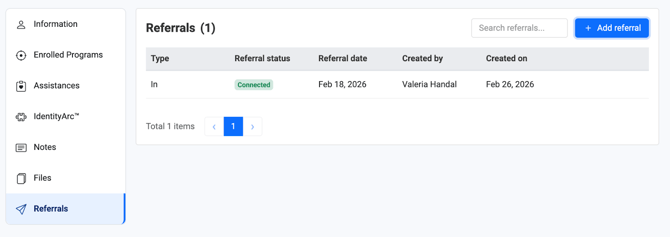
The Referrals feature allows organizations to track and manage both incoming and outgoing referrals for a client. It provides a centralized view within the Client Toolkit, enabling teams to monitor referral status, maintain connections with external providers, and create new referrals directly from the client profile.
This functionality supports effective care coordination by ensuring that all referral activities are documented and easily accessible.
Who can use this feature
- Organization Administrators – Can add, view, edit, and archive referrals.
- Team Members – Can add, view, edit, and archive referrals.
- Interns / Volunteers – Can add, view, edit, and archive referrals.
- Law Enforcement / Advocates – Do not have access to add, view, edit, or archive referrals.
Where to find Referrals
- Navigate to Clients from the left-hand sidebar.
- Select a client to open their Client Toolkit.
- Click the Referrals tab to access the Referrals Dashboard.
Understanding the Referrals Dashboard
The Referrals Dashboard provides a structured overview of all referrals associated with a client, allowing users to efficiently track and manage referral activity.
1. Referral Type
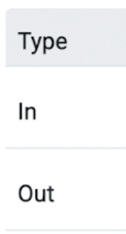
Indicates the direction of the referral:
- In – Referrals received for the client from external organizations or partners.
- Out – Referrals initiated by your team to external providers or services.
2. Referral Status
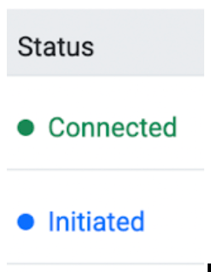
Displays the current stage of each referral:
- Connected – The referral has been successfully established or accepted.
- Initiated – The referral has been created but is still pending action or confirmation.
3. Referral Date
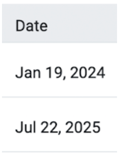
Shows when the referral was created or recorded, helping teams track timelines and follow-ups.
4. Created By
Identifies the organization or provider involved in entering the referral into the system.
5. Created On
Displays the date when the referral was created in the system.
6. Referral Filters
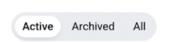
Allows users to filter referrals by status:
- Active – Current referrals in progress.
- Archived – Historical or completed referrals.
- All – A complete view of all referrals.
7. Search Function

Enables users to quickly locate specific referrals using keywords or details.
8. Total Referrals Count
Displays the total number of referral records for the client, providing an immediate overview of referral activity volume.
9. Add Referral Button
Provides quick access to create and initiate a new referral directly from the dashboard.
Why this matters
The Referrals feature helps organizations:
- Coordinate services with external providers
- Track the progress and outcomes of referrals
- Maintain a centralized record of client connections
- Improve communication and follow-up
- Support continuity of care and case management
Tips / Best Practices
- Keep referral statuses updated to reflect current progress.
- Use clear naming for external providers to ensure consistency.
- Archive completed referrals to maintain an organized dashboard.
- Monitor referral dates to support timely follow-ups.
- Leverage the search and filter tools for efficient navigation.
Related Articles
Need more help?
If you need assistance managing referrals or encounter any issues, please contact your Organization Administrator or reach out to our Support Team through the in-platform chat and select “Report an issue.”