
What this feature does
Client status reflects whether a client is currently receiving services (Active) or has completed or left a program (Exited). Managing these statuses ensures your caseload remains accurate and your reporting reflects current engagement.
Who can use this feature
- Organization Administrators
Can view, filter, and update client enrollment statuses - Team Members
Can view, filter, and update statuses for assigned clients - Law Enforcement / Advocates & Interns / Volunteers
Can view and filter statuses only
Before you begin
Client status is tied to program enrollment.
A client can be:
- Exited from one program
- Still active in another program
How to view and filter client statuses
From a Program dashboard
- Click Programs
- Select a program
- Open the Enrolled Clients section
- Use the filters:
- Active
- Exited
- All
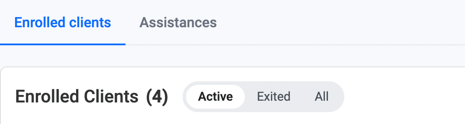
This view shows status within that specific program.
How to exit a client from a program
When a client completes or leaves a program, update their enrollment:
- Click programs on left hand menu
- Locate the program and click on it
- Search for your client using the search tool under "Enrolled Clients"
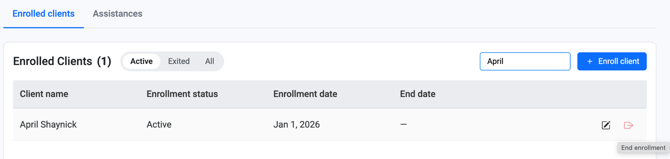
4. Click the red Exit Enrollment icon

5. Complete "Program Exit" form.
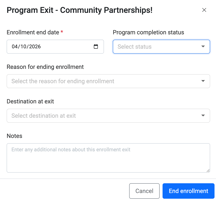
6. Click "End Enrollment"
7. Complete "Exit Assessment" form
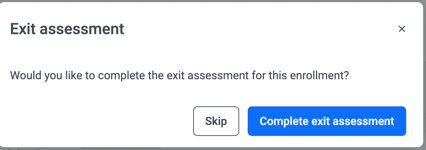
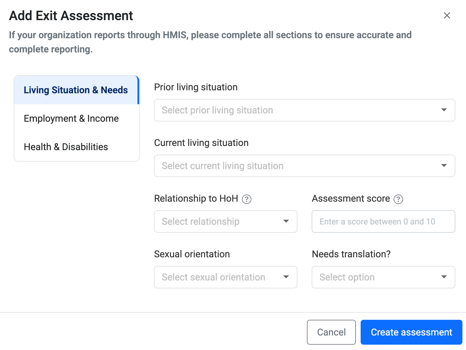
8. Click "Create assessment" to finish exiting your client off a program.
Result
The client’s status is updated, and they will appear under the Exited filter for that program.
Tips / Best practices
- Do not delete clients
Always use an End Date to preserve historical data - Review active caseloads regularly
Filter by Active to ensure records are up to date - Understand global vs program status
A client is only globally exited when they have an End Date for all programs
Related Articles
- How to enroll a client in a program
- How to use assessments at the program level
- Overview of programs
Need more help?
If you need help managing client statuses or updating enrollments, please contact your Organization Administrator or reach out to our support team.