
What this feature does
Client-level assistance tracking allows organizations to view, manage, and record all services delivered to a specific client in one centralized location. This client-focused perspective ensures a clear and comprehensive record of support provided by staff and helps organizations monitor service delivery over time.
Assistances recorded at this level reflect all services delivered directly to the selected client and can optionally be associated with a specific program when relevant.
Who can use this feature
- Organization Administrators – Full access to create, view, edit, archive, and unarchive assistance records.
- Team Members – Can add and view assistances and edit records they own for clients assigned to them.
- Interns / Volunteers – Can add and view assistances and edit records they own for clients assigned to them.
- Law Enforcement / Advocates – Can add and view assistances and edit records they own for clients assigned to them.
Why this matters
Tracking assistances at the client level helps organizations:
- Maintain the full history of services provided to an individual.
- Monitor service delivery and client engagement over time.
- Support reporting requirements, including VOCA compliance.
- Maintain a clear and centralized record of support provided by staff.
- Improve coordination and continuity of care across teams.
How to add an assistance at the client level
Step 1: Navigate to the client profile
1.From the left-hand navigation menu, click Clients.
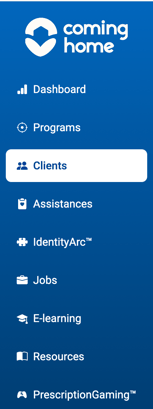
2. Locate the desired client using the client list or search bar.

3. Click the client’s name to open their profile.
Step 2: Open the Assistances tab
1. Within the client profile, select the Assistances tab.
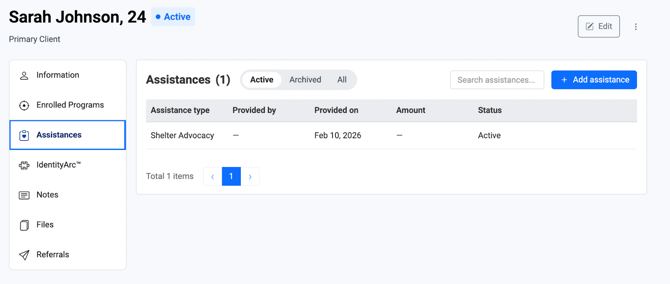
2. The Client Assistances Dashboard will display all assistances associated with the selected client.
Displayed columns include:
- Assistance Type
- Provided By
- Provided On
- Amount
- Status
This dashboard allows users to search, filter, and export assistance data.
Step 3: Add a new assistance
- Click Add Assistance.
- The Add Assistance modal will open.
Step 4: Complete assistance details
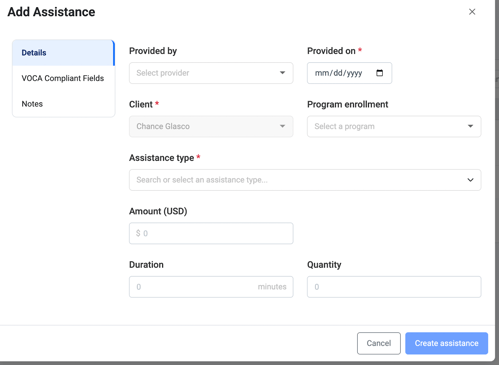
Within the Details section, complete the following fields:
- Provided By – Identifies who delivered or recorded the assistance.
- Provided On – The date the service was delivered (required).
- Client – Automatically pre-selected when adding from the client profile.
- Program (Optional) – Associate the assistance with a specific program if applicable.
- Category – Select the main assistance category.
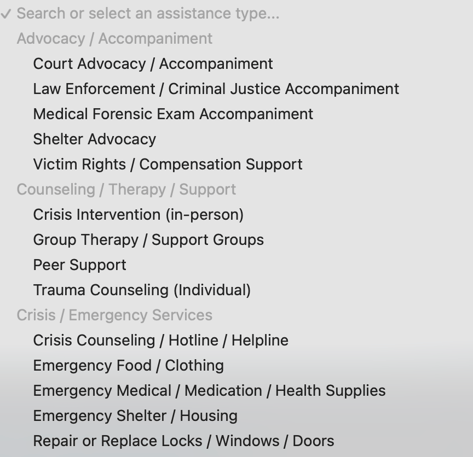
- Assistance Type – Choose the specific service from prebuilt or custom options.
- Amount (USD) – Record any financial value associated with the assistance.
- Quantity – Track counts or units of service delivered.
- Duration – Record the time spent delivering the service.
These fields allow organizations to capture standardized and measurable service data, including financial assistance values, service duration, and quantitative outputs.
VOCA Reporting Fields
Overview
The VOCA Reporting Fields section enables organizations to capture additional data required for Victims of Crime Act (VOCA) reporting and similar grant-based compliance frameworks. Even organizations not reporting under VOCA can use these fields to support structured service tracking and outcome evaluation.
VOCA fields explained
- Delivery Method – Specifies how the assistance was delivered (e.g., in-person, virtual, phone, hotline, group session, outreach).
- Interpreter Provided – Indicates whether interpretation services were used during service delivery.
- Victimization(s) Addressed – Identifies the type(s) of victimization related to the assistance.
- Outcome Collected – Indicates whether a measurable outcome resulted from the assistance.
- Outcome Type – Defines the category of outcome achieved (e.g., Safety Planning, Protection Order).
- Outcome Result – Describes the specific result or status achieved.
Step 5: Add notes
The Notes section allows users to document additional qualitative context, including:
- Observations
- Client updates
- Service context
- Follow-up requirements
Notes enhance collaboration, service continuity, and reporting clarity.
Step 6: Save the assistance
1. Review all fields for accuracy.2. Click Create Assistance to finalize and save the record.
3. The assistance will appear in the Client Assistances Dashboard and contribute to reporting metrics.
Result
Once saved:
- The assistance becomes part of the client’s complete service history.
- It can be used for program and organizational reporting.
- The record remains accessible for future reference, audits, and analysis.
Related Articles
- Overview of Assistances
- How to Assign an Assistance at the Organization Level
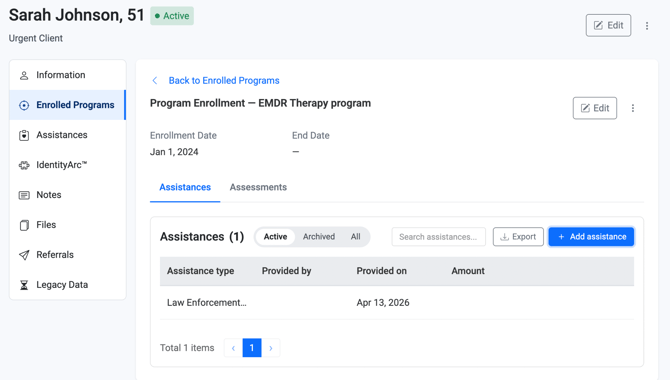
- How to Assign Assistances at the Client-Enrolled Program Level
- How to Create Custom Assistances (Categories and Items)
- Overview of Programs
Need more help?
If you need assistance with client-level assistance tracking, please contact your Organization Administrator or reach out to our Support Team through the in-platform chat and select “Report an issue.”