
What this feature does
Enrolling a client in a program assigns them to a structured support pathway, aligning services, activities, and reporting in one place.
Who this feature is for
-
Organization Administrators, Team Members, and Interns only
-
Law Enforcement/Victim Advocates Clients do not have access to enroll clients to a program.
How to enroll a client in a program
Step 1: Go to Programs
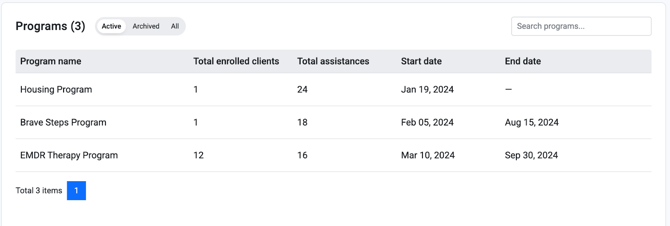
From the left-hand sidebar, click Programs.
Step 2: Select a program
Choose the program you want to enroll the client in from the list.
Step 3: Click “Enroll Client”
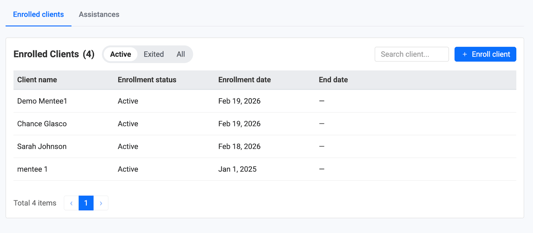
In the Enrolled Clients section, click Enroll Client.
Step 4: Select the client
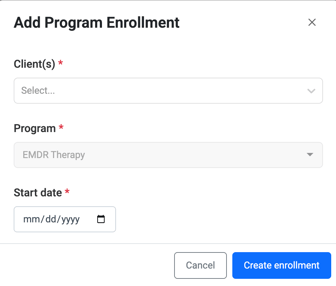
From the "Client(s)" dropdown menu, select the client you want to enroll.
Step 5: Set enrollment details
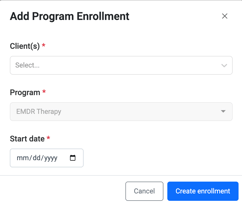
- Start Date – When the client begins the program
Step 6: Create enrollment
Click Create Enrollment to confirm.
The client will now appear in the program’s enrolled clients list.
HMIS users:
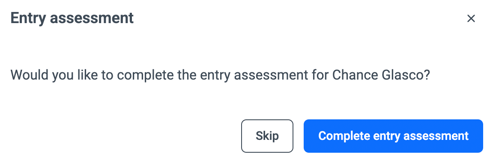
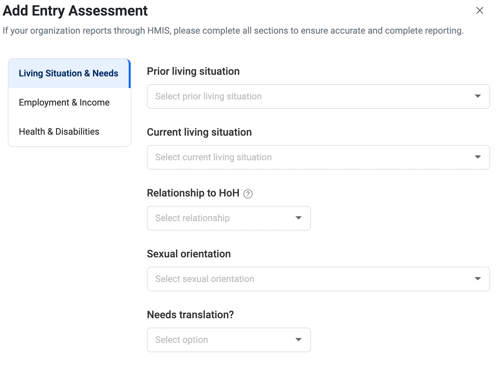
After completing the information above, you will be required to complete an Entry Assessment covering Living Situation & Needs, Employment & Income, and Health & Disabilities. Please ensure all required fields are completed before proceeding. (This is just a requirement for CoC grantees, but we still encourage all users to complete this entry assessment).
To learn more about Assessments, please click any of the following articles:
- Understanding entry, during, and exit assessments-program level
- How to use assessments at the program level
Related Articles
- Overview of Programs
- How to create a program
- How to view enrolled programs for a client
- How to Use Assessments at the Program Level
- Overview of the client toolkit
Need more help?
If you need help enrolling a client in a program, please contact your Organization Administrator or reach out to our support team.