
What this feature does
Program-based assessments enable service providers to track client progress across key well-being categories at critical points in the client journey within a program. By capturing data at Entry, During the Program, and Exit, organizations gain a comprehensive and longitudinal view of outcomes, progress, and overall impact.
Assessments are created and stored at the individual client level and are directly tied to a specific program enrollment, ensuring that all data reflects the client’s experience within the correct service context.
Why assessments matter
Assessments provide a structured and standardized approach to understanding client needs and measuring progress. They help organizations:
- Track changes in client well-being over time
- Support accurate program-level reporting
- Preserve historical data across multiple program enrollments
- Ensure accountability and service quality
- Enable outcome measurement and evaluation
- Support CoC and HMIS compliance, including HUD reporting requirements
Who can use this feature
Access & Permissions
- Organization Administrators – Can add, edit, archive, and view assessments.
- Team Members – Can add, edit, archive, and view assessments for clients assigned to them.
- Interns / Volunteers – Can add, edit, archive, and view assessments for assigned clients.
- Law Enforcement / Victim Advocates – Do not have access to create, edit, archive, or view assessments.
Assessment types
Assessments are recorded at three key stages of a client’s participation in a program:
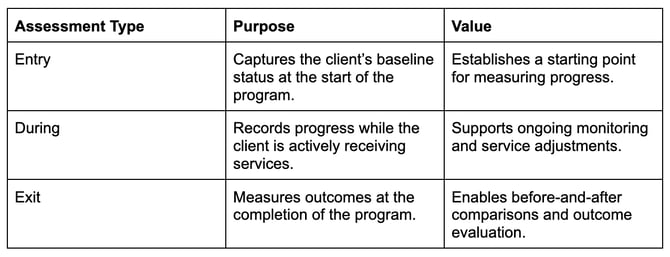
These standardized evaluation points provide a clear timeline of the client’s journey and support meaningful impact measurement.
Assessment categories
Each assessment captures data across three core well-being domains:
1. Living Situation & Needs
This section evaluates housing stability and immediate service needs, including:
- Prior Living Situation
- Current Living Situation
- Relationship to Head of Household
- Sexual Orientation (optional demographic data)
- Need for Translation or Interpretation Services
2. Employment & Income
This section measures economic stability and access to financial resources:
- Education Status
- Employment Status
- Non-Cash Benefits
- Source of Income
3. Health & Disabilities
This section captures health coverage and vulnerability indicators:
- Health Insurance
- Experience of Domestic Violence
- Presence of a Disabling Condition
Where to find assessments
Assessments are located within the Client Toolkit and are tied to a specific program enrollment:
- Navigate to Clients from the left-hand sidebar.
- Select the desired client.
- Click Enrolled Programs.
- Choose the relevant program.
- Open the Assessments tab to view all assessments associated with that enrollment.
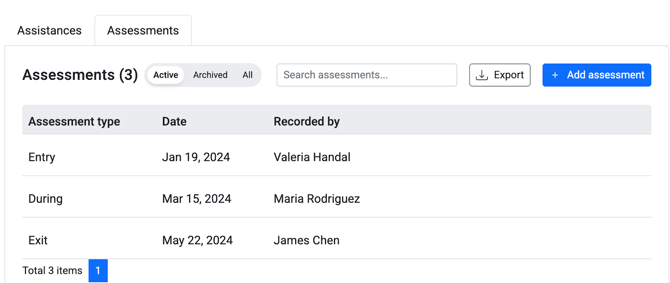
Understanding the Enrolled Program-Based Assessments Dashboard
The Enrolled Program-Based Assessments Dashboard provides a centralized view of all assessments linked to a client’s enrollment in a specific program.
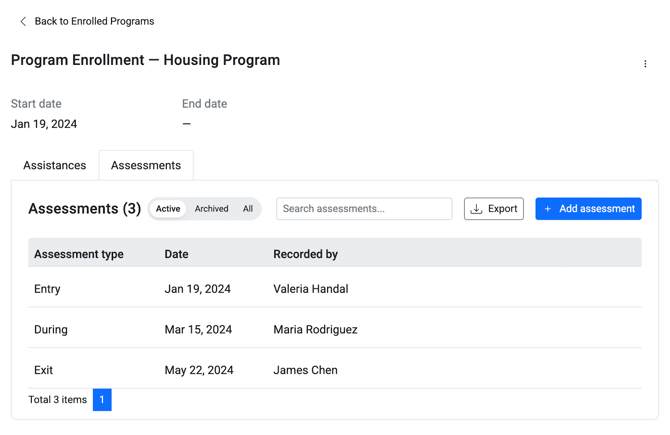
Key Components
1. Program Context Header
Displays:
- Program Name
- Program Start Date
- Program End Date (if applicable)
Why it matters:
- Ensures assessments are tied to the correct program
- Provides context for interpreting outcomes
- Supports reporting and compliance
2. Assessment Table
Included Columns:
- Assessment Type – Entry, During, or Exit
- Date – When the assessment was completed
- Recorded By – Staff member who completed the assessment
Value:
- Enables before-and-after comparisons
- Supports accountability and transparency
- Provides a timeline of client progress
3. Add Assessment Button
Allows authorized users to create a new assessment directly within the program enrollment.
Related Articles
- How to Add an Assessment to a Client
- How to Edit or Update an Assessment
- How to Archive an Assessment
- Overview of Programs
- How to Enroll a Client in a Program
Need more help?
If you need assistance with creating or managing assessments, please contact your Organization Administrator or reach out to our Support Team through the in-platform chat and select “Report an issue.”