
There are two convenient ways to view all programs a specific client is enrolled in. You can access this information directly from the client's profile or by navigating through the Programs section. Both methods provide the same comprehensive view of program participation, engagement metrics, and enrollment history.
Who Can Use This Feature
- Organization Administrators: Can view enrolled programs for all clients within the organization
- Team Members: Can view enrolled programs for clients assigned to them
- Interns / Volunteers: Can view enrolled programs for clients assigned to them
- Law Enforcement / Advocates: Do not have access to view enrolled programs
Before you begin
You must know the client's name or have access to view their profile. If you need help accessing a client profile, see "How to access a client profile" in Related Articles.
Method 1: View enrolled programs directly from the Client Toolkit
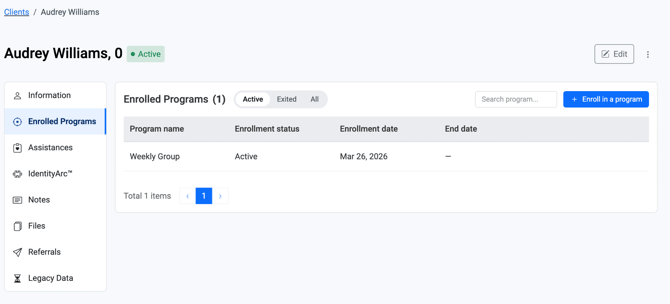
This is the fastest way to see a client's programs when you already have their profile open.
Steps
- Navigate to the Clients tab from the left-hand sidebar
- Search for and select the client to open their Client Toolkit
- Click on the Programs tab
- View the Enrolled Programs table
What You’ll See
- Program Name
- Start Date
- End Date (blank if active)
- Assistances: Number of services provided
- Assessments: Number of completed assessments
Filter Options
- Active: Current programs
- Exited: Completed programs
- All: Full history
You can also use the search bar to find a specific program.
Method 2: View enrolled programs from the Programs dashboard
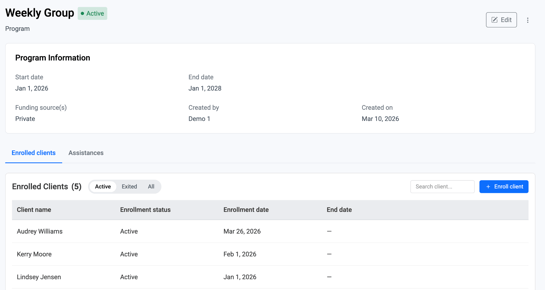
This method is useful when you want to explore programs first and then see which clients are enrolled in them.
Steps
- Navigate to the Programs tab
- Click the Program you wish to view
- View the selected Programs' dashboard
- Use filters (Active, Archived, All) or search
- Click on a Program Name
- Open the Enrolled Clients section
- Select a client to view their enrollment details
What You’ll See
- Enrollment start and end dates
- Assistances provided within the program
- Assessments completed within the program
Result
You have successfully viewed the client's enrolled programs using your preferred method. You can now see their current program participation, historical program history, and engagement metrics (assistances and assessments) for each program.
Tips / Best Practices
- Method 1 is faster if you already have the client's profile open and want to see all their programs at once.
- Method 2 is better if you want to explore specific programs first or need to manage multiple clients within a program.
- Use the Active filter during case reviews to quickly focus on the programs the client is currently engaged in.
- Check the Assistances and Assessments columns to understand how active the client has been within each program. Higher numbers indicate more engagement.
- If you have the appropriate permissions, you can click the Enroll in a program button to add the client to an additional program without leaving their profile (Method 1) or from within the program (Method 2).
Related Articles
- Overview of the client toolkit
- How to enroll a client into a program
- How to assign assistances to a client
- How to manage assistances at the program level
- How to manage referral information
Need more help?
If you cannot see a program that you believe the client is enrolled in, verify that you have the correct status filter selected (e.g., "All" instead of just "Active"). If the issue persists, contact your Organization Administrator to confirm you have access to view this client's information and the specific program.